Outcome: Identify chat, agent, and API access and record the selected included-use path.
Start: M01 complete; a private place to finish account sign-in.
The selected course path uses browser chat for explanations and Codex in an editor for project work. A subscription sign-in and a separately billed API are different access paths. You do not need an API key in the learner project. Check the current official account controls and available limits rather than assuming that an installed interface grants unlimited use. Codex pricing
For the worked setup, identify the editor, extension publisher, sign-in path, and post-login project access. Record installed versions. The edition's bounded Windows ARM pilot verified a dedicated Free account could execute a small Codex task; it does not guarantee uninterrupted access for every learner or every future release. The current official documentation governs changing product controls. Codex IDE extension
Keep credential entry outside screenshots and recordings. A safe setup demonstration can show the entry screen, explain the omitted private step, and return to a neutral authenticated project view. Browser identity and Git transport identity are separate checks; later lessons verify the actual private repository operation.
Inspect what a request shares. Provide the relevant excerpt or intended project, excluding unrelated material. A prompt asking an agent not to edit is guidance; actual access controls determine permitted actions. In the next lesson, examine the runtime's project scope and tool actions.
If an account limit occurs, save the brief and current files. Use the original reference response for the analysis exercise while continuing local editor, Git, and compiler work. Label that analysis accurately. Do not switch to an unplanned billing path merely to keep a lesson moving. The completion check is a clear setup record naming the route and any remaining dependency.
Practice and completion
Complete the exercise, then compare your artifact with the separately distributed instructor answer. A lesson acknowledgment records your own progress; it does not certify that a physical test occurred.
Chapter 4. Resources: Project checkpoint guide and toolchain setup. Figure references: SS04-01–03.
Recording transcript
Before we configure the project, we need to understand which account path and tools the course actually uses. This lesson will leave you with a short setup record. It will identify the editor, the selected AI interface, and the status of access without putting credentials into your project. Installation, sign-in, permissions, and successful execution are separate observations.
We use browser chat for introductory explanations and Codex in an editor for project work. A browser response can explain supplied text. An editor agent can also use permitted tools to inspect files, execute commands, or make edits. An API client is another path: it is software you build or configure to call a service. The course does not require that API path or a key stored beside the firmware.
Account eligibility and usage limits can change. Use the current official information and the controls shown in your account. The edition's bounded pilot verified that a dedicated Free account could perform a small Codex task in its recorded environment. That is useful evidence of that access path, but it is not a promise of unlimited use for every lesson or every future product release.
If you reach a limit, save your brief and current files. You can analyze the original reference response, write requirements, inspect code, read diffs, and run local checks while waiting for access to return. Record which interaction you actually performed and which supplied example you examined. Do not describe an offline analysis as a new model run, and do not silently change billing routes.
Start the setup record with the operating system and architecture. The demonstrated environment is Windows on ARM, which is different from x64 Windows. The recorded editor used an ARM64 user installation. If you use another supported environment, follow its official installer instructions and record the actual versions. A screenshot showing one architecture is not proof that every dependency supports another.
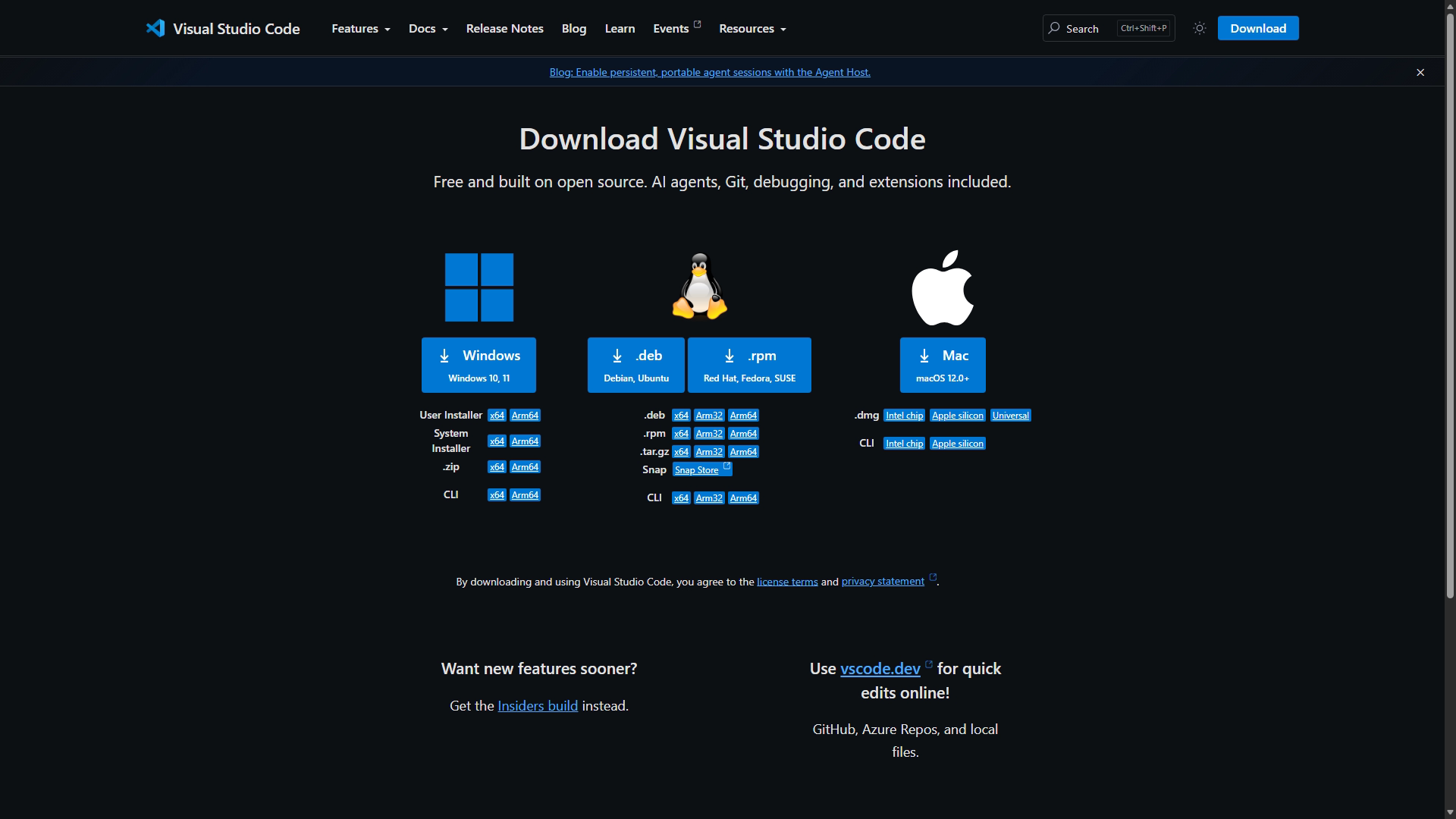
Open the official Visual Studio Code setup page and select the appropriate installer. The user installation supports ordinary editor work under a standard account. Follow the current documentation and restart the application after installation. We do not need the author's production tools, hosting accounts, or password manager inside the learner workbench. The project folder and its supported development tools are enough.
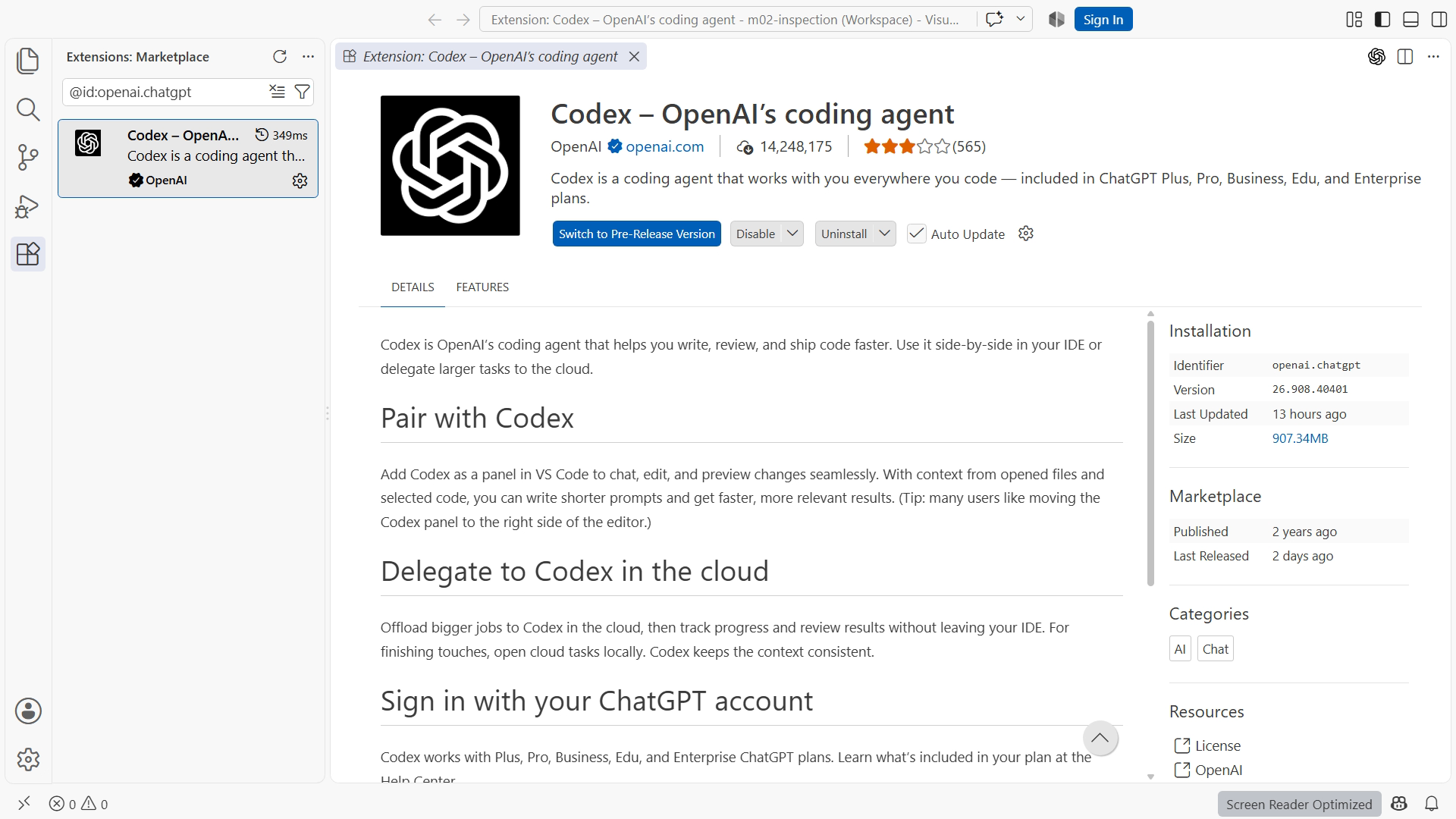
In the Extensions view, locate the official Codex component and verify its publisher against the official documentation. Similar names are not a reliable identity check. Record the installed extension version and editor version. An installed extension means the component is present. It does not yet show that the intended account is authenticated or that the agent can inspect the correct project.
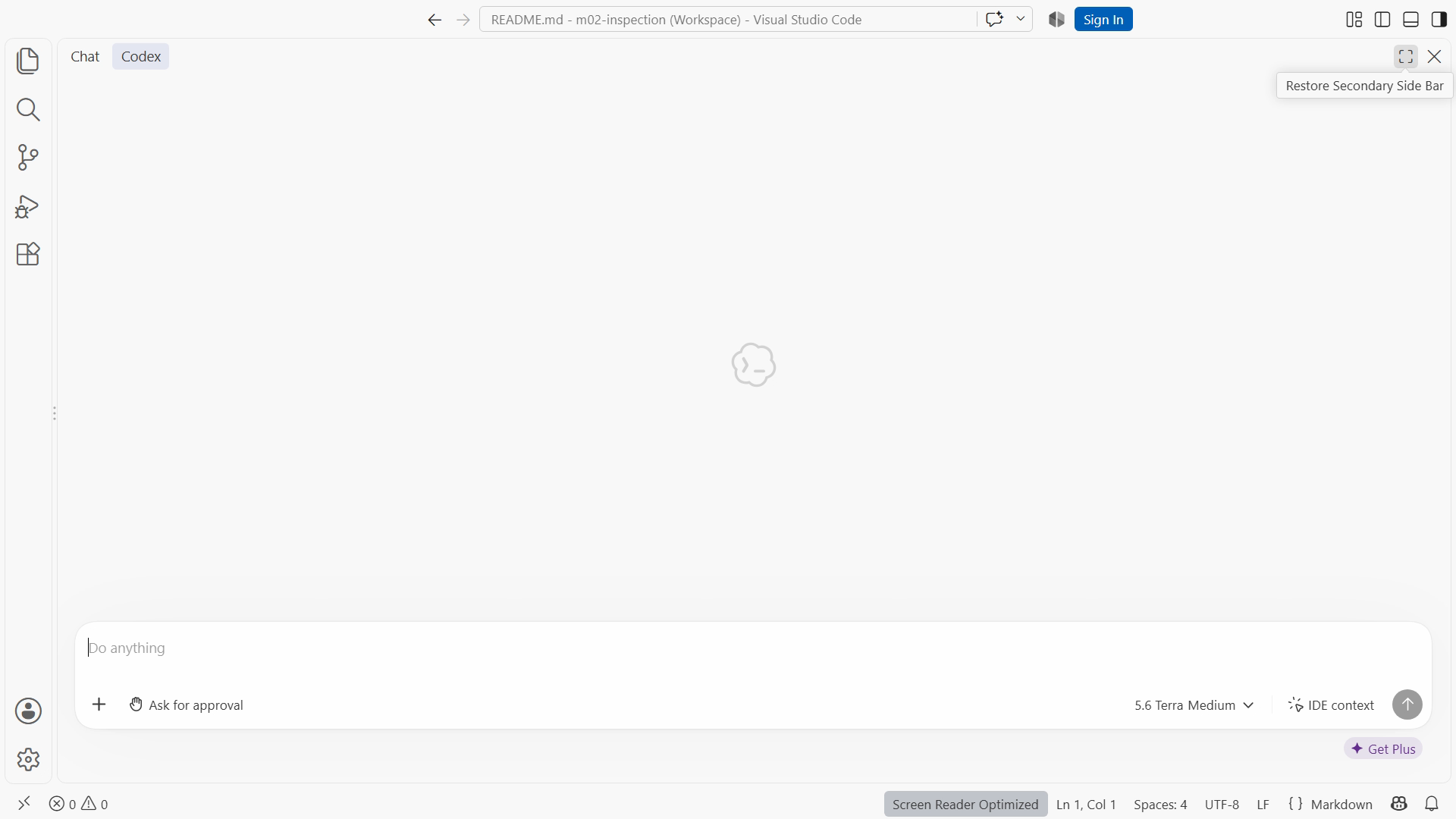
Sign-in is a private step. The video can show the safe entry screen and the neutral project view afterward, with the private interval omitted. Do not capture passwords, recovery codes, tokens, or a password-manager surface. Complete any login challenge yourself, then return to the project. There is no educational benefit in displaying credentials as proof that authentication occurred.
Check the resulting access path. If the interface offers subscription sign-in, use the selected course route. Do not assume that an API option is required just because it appears nearby. If you cannot determine which route is active, inspect the official help and account controls before proceeding. Your setup record should say what you actually used rather than infer it from a successful-looking welcome screen.
Next consider what information a request shares. A short excerpt may answer an explanation question. An agent task may need the intended repository. Neither requires unrelated documents, private messages, or other projects. Use a practice folder whose contents you understand. Later we will inspect the exact folder and the agent's actions so that project access has an observable boundary.
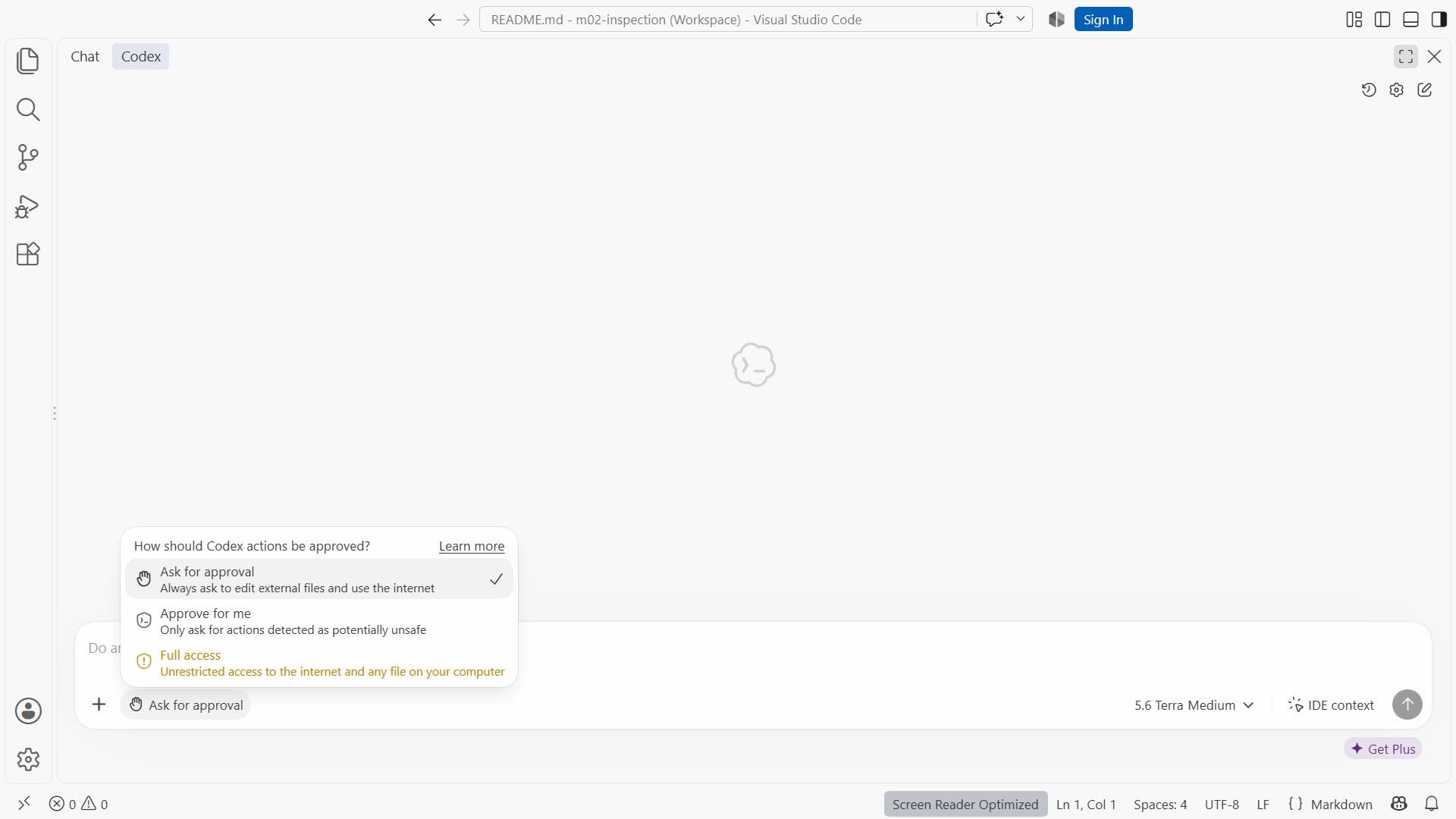
Instructions and permissions have different roles. A prompt can say inspect only and do not edit. That expresses the task. Runtime controls determine what operations are technically permitted. Read both. A broad permission setting does not mean every available operation belongs in the task, and a narrow-sounding prompt does not create a technical barrier by itself.
The setup record should distinguish four stages. First, the interface is installed. Second, the intended account is signed in. Third, project access is configured. Fourth, a bounded task has executed and its result has been checked. We complete the final stages in the next lesson. Keeping them separate helps diagnose a failure without reinstalling everything or changing unrelated settings.
Consider a few interruptions. A missing executable is a local tool problem. An account limit is an access-capacity problem. A wrong project folder is a path problem. A compiler diagnostic is a program or dependency problem. They may occur in the same session, but they call for different remedies. Preserve the exact message and context so the next step addresses the actual cause.
For your exercise, classify three activities: a browser explanation, an editor agent reading project files, and an API client requiring a key. Then identify the path used by this course and one useful local action you can continue if the service is limited. Fill in your actual versions and access status without copying private metadata into the notebook.
A version record is useful only if it describes your actual installation. Copying the edition's version table into a result field would hide differences that might explain a later failure. Keep the table as a comparison reference and enter your own observed values separately. If the interface does not expose a detail, mark it unavailable rather than infer it. You can still record the concrete operation that succeeded or failed and the date of that observation.
You are ready to continue when the record makes your setup understandable and honest. If authentication remains pending, mark it pending and continue the independent local work. If it succeeds, record the neutral result without secrets. The next lesson will connect this account and interface to a named project folder, a documented software check, and an inspection-only agent task.
Download transcript