M03-L01 — Create the GitHub practice repository
Outcome: Choose private visibility and verify the intended remote before transfer.
Start: M02 complete; two reviewed local commits and a GitHub account you control.
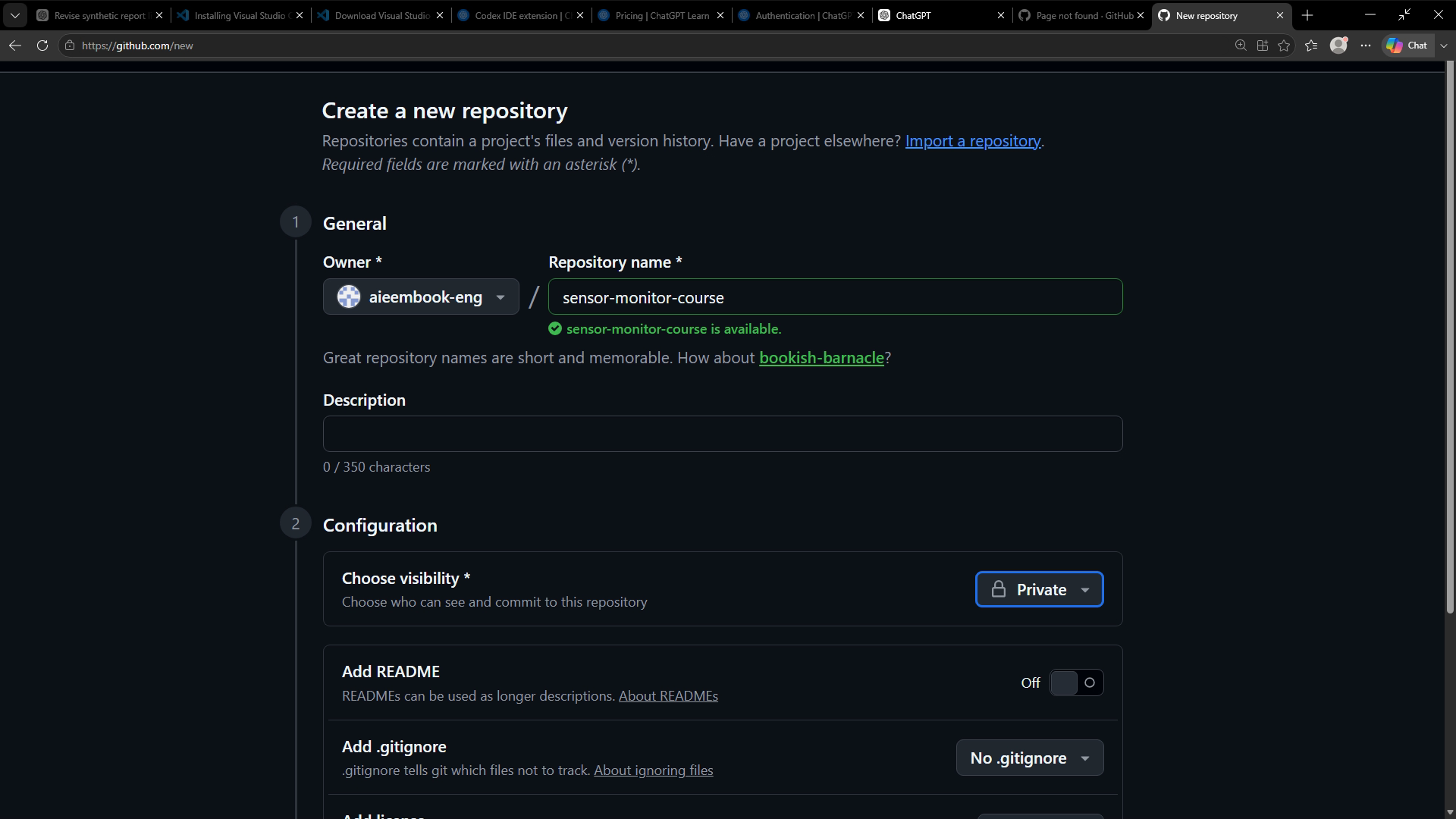
Git is local version-control software; GitHub hosts repositories and collaboration. You can complete this lesson with a private practice repository. Sign into the intended account and inspect the selected owner and visibility before creation. Because the local project already has history, create the remote without an initial README, license, or ignore file. GitHub Hello World
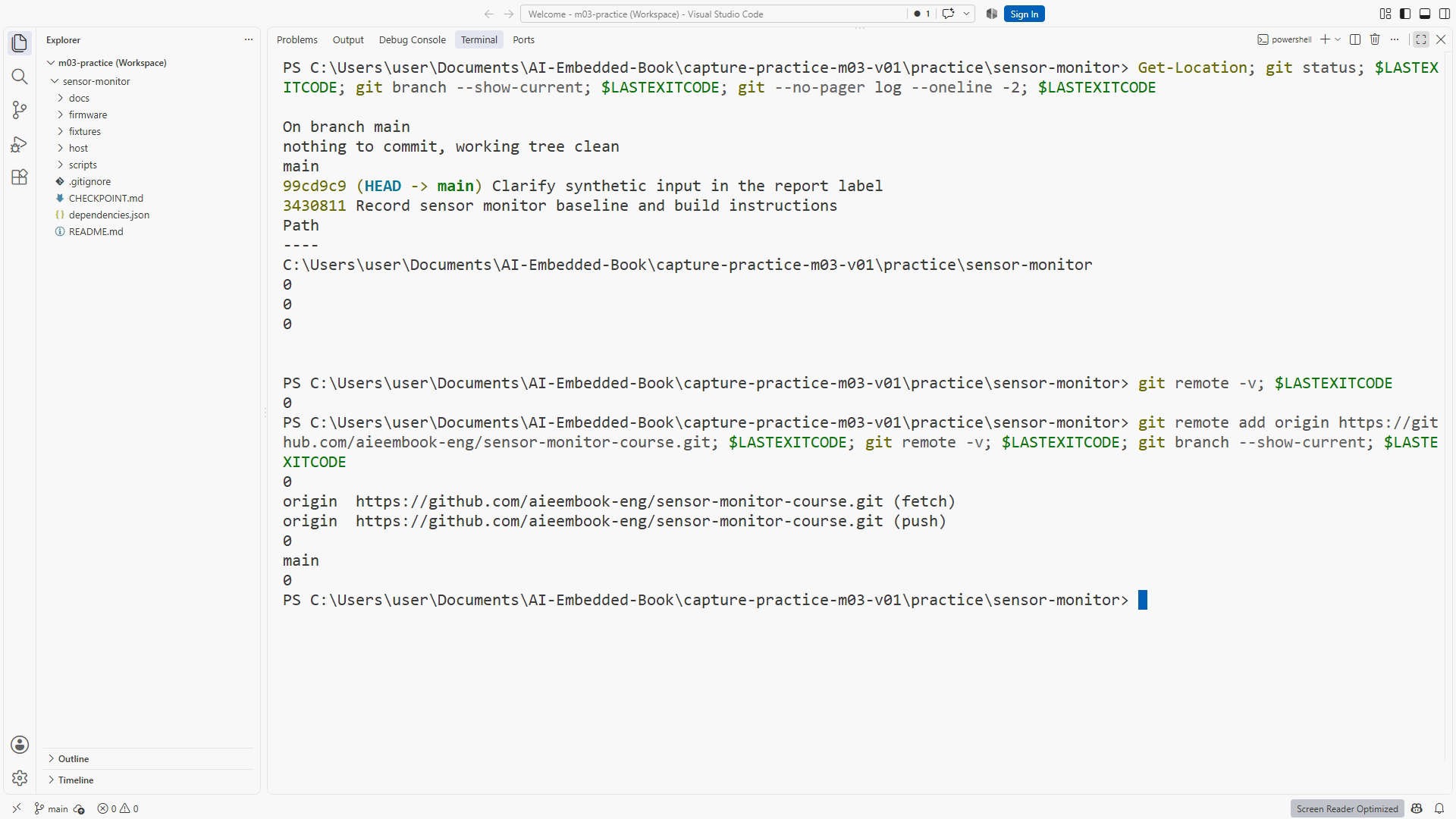
Inspect local state and the remote configuration from PowerShell in the Chapter 5 practice root:
git status
git branch --show-current
git remote -v
If no remote exists, copy the HTTPS URL from the new private repository and add it using git remote add origin followed by that actual URL. The name origin is a convention; it does not verify the destination. Read the owner, repository, and transport in git remote -v afterward. If origin already exists, inspect it before deciding whether set-url is appropriate. git remote
Commit identity is not authentication. The browser can use one account while Git's credential helper uses another. Complete the supported private credential flow when required and verify access through the actual operation. Never embed tokens in remote URLs or record credential entry. GitHub credential management
Before transfer, inspect tracked files and recent history. A private remote still receives what you upload. The practice project contains source, documentation, scripts, and synthetic fixtures; it should not include secrets or unrelated history. End the lesson with a recorded correct remote and visibility. The next lesson performs and verifies the push.
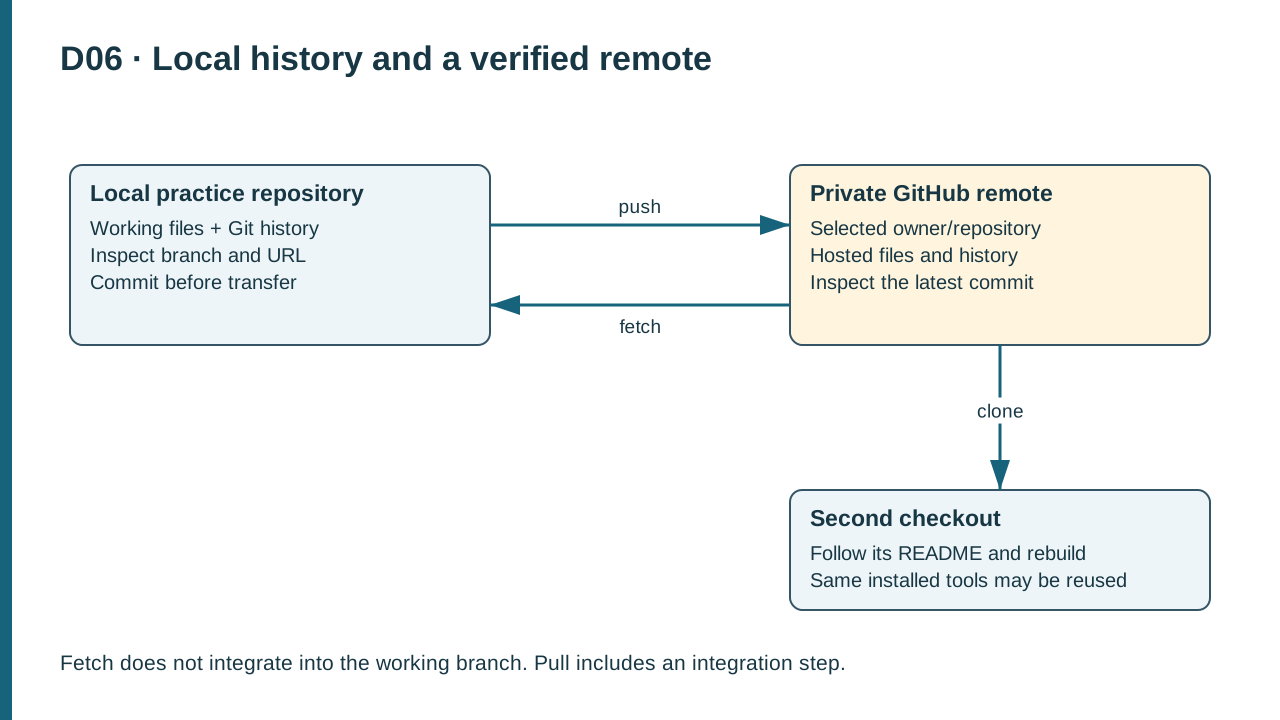
D06. Push sends commits to the remote; fetch retrieves remote knowledge without integration; clone creates a separate checkout for reproduction.
Recording note: The repository was created once. The video shows the actual configuration before creation and the resulting empty private repository; the creation transition is omitted because that capture failed. The completed destination note is previewed before its single recorded edit-and-save demonstration. Original teaching notes explain conditional recovery and authentication; no such error or sign-in is staged. This lesson stops before Git transport, which is performed in the next lesson.
Practice and completion
Complete the exercise, then compare your artifact with the separately distributed instructor answer. A lesson acknowledgment records your own progress; it does not certify that a physical test occurred.
Chapter 6. Resources: Project checkpoint guide and toolchain setup. Figure references: SS06-01–02; D06.
Recording transcript
The local history from the previous module is useful on its own. Now we will connect it to a private GitHub practice repository. This lesson stops at a verified destination so that the next lesson can perform and inspect the transfer. The key habit is to check the actual owner and URL before sending project history anywhere.
Git and GitHub have different roles. Git records and compares versions locally. GitHub is a hosting and collaboration service that can hold a remote copy of those commits. A local commit does not automatically upload, and signing into a website does not automatically synchronize your working folder. Keeping these actions separate makes the workflow easier to understand.
Open GitHub in the browser and verify the account you intend to use. Choose a neutral practice repository name. Private visibility satisfies this course; there is no need to publish your project. Inspect the owner and visibility controls before creation. If you have access to several accounts or organizations, this is the point where an unnoticed selection can send work to the wrong place.
Your local project already contains a baseline and a meaningful label change. Create the remote without a generated README, license, or ignore file. The README and ignore rules already exist in local history; licensing is a separate deliberate choice. Creating separate content on the server would produce another initial history that needs reconciliation. Avoiding that unnecessary branch of work keeps the first synchronization straightforward.
If you already initialized the remote, do not panic and do not force-push immediately. Preserve both states and inspect what exists. For a disposable practice exercise, another empty private repository with a new name can be a simple deliberate restart. For a real project, the contents may matter and need integration. The correct remedy depends on what you intend to preserve.
Return to PowerShell in the local practice repository. Check the current location, Git status, and branch name. Confirm that you are looking at the history you reviewed in the previous module. A browser tab showing the right remote is not enough if the terminal is inside a different project. We verify both ends of the connection.
Run Git remote with the verbose option. If the project has no configured remotes, the output may be empty. If a remote exists, read its name and address. Origin is only a conventional label stored locally. It does not mean the server is correct, safe, current, or owned by the account you expected. The actual URL carries the destination information.
Copy the HTTPS address from the new private repository page. Use it with the remote-add command shown in the written lesson. Replace the example owner with the real selected account rather than copying the book's demonstration address. Then run the verbose remote inspection again and read the result before any push.
If Git reports that origin already exists, adding it again is not a repair. Inspect the existing value. If it is wrong and you have identified the correct destination, use the set-url operation deliberately. Record what changed. If it is already correct, leave it alone. Avoid creating several similarly named remotes just to get past an error you have not understood.
Never put a token into the remote URL. Addresses can appear in command output, shell history, logs, and screenshots. Use the supported credential flow for authentication. The exercise's evidence should show a normal repository address without any secret material. A credential embedded in a URL is not a more reproducible setup; it is private information in a place likely to be copied.
Commit identity and authentication are also separate. The author name and email recorded in a commit describe who is credited for that change. They do not grant permission to a private repository. Your browser may be signed into the intended account while the Git credential helper has a different identity. An actual Git operation will test that access in the next lesson.
When authentication is requested, complete the private sign-in process and return to the project. The course recording can show the safe entry screen and neutral post-login state with credential entry omitted. Do not show passwords, recovery codes, or a password-manager surface. A human login challenge is a private setup action, not a reason to invent a successful result for the lesson.
Before transferring history, inspect the tracked files and recent commits. The repository should contain the intended source, scripts, documentation, and synthetic fixtures. A private repository still receives whatever you upload. Also remember that deleting a sensitive file from the current tree does not necessarily remove it from earlier commits. Our supplied practice history is deliberately generic and separate from authoring history.
Write a short destination record. Include the intended repository, private visibility, current local branch, and the inspected remote address without credentials. State whether authentication has been exercised yet. Do not label configuration as successful transport. That final distinction lets the next lesson add real push and clone evidence instead of repeating an assumption.
One useful final inspection is to read the repository address from right to left: repository name, owner, then host. This is not a new security mechanism; it is a deliberate way to catch a familiar-looking typo. Compare it with the actual browser page you just created. A neutral practice name can resemble an earlier exercise, so also check whether the remote is empty as intended. Configuration should be established by those concrete observations before transport begins.
For your exercise, explain why origin's name is insufficient and how commit identity differs from access. You are ready to advance when both the local history and remote destination are the ones you intended. We will then push, inspect the hosted commit, clone into a second folder, and test whether the written setup is sufficient to reproduce the project.
Download transcript